Multi-Step Forms in Filament: A Complete Guide | FilaForms                                   [ ![Filaforms Logo](https://filaforms.app/logo.svg)FilaForms

 ](https://filaforms.app)   [ Documentation ](https://docs.filaforms.app) [ Blog ](https://filaforms.app/blog) [ Try Demo ](https://filaforms.app/login)

  [ Documentation ](https://docs.filaforms.app) [ Blog ](https://filaforms.app/blog) [ Try Demo ](https://filaforms.app/login)

   ![FilaForms](https://filaforms.app/logo.svg) FilaForms

 TutorialsMulti-Step Forms in Filament: A Complete Guide
==============================================

 filaforms.app/blog

  [    Back to blog ](https://filaforms.app/blog) [ Tutorials ](https://filaforms.app/blog/category/tutorials)

Multi-Step Forms in Filament: A Complete Guide
==============================================

 Manuk Minasyan ·  April 9, 2026  · 10 min read

 Long forms kill completion rates. You already know this. If you've ever put 15 fields on a single page and wondered why nobody finishes it, the answer is obvious: nobody wants to stare at a wall of inputs.

Multi-step forms fix this by splitting things up. One section at a time, with validation between each step. The user sees progress and actually finishes the form.

In this guide, I'll walk through how to build multi-step wizard forms using FilaForms in Filament. No custom Livewire wizards, no hand-rolled JavaScript. Just sections, a toggle, and a few options.

[\#](#when-you-actually-need-multi-step-forms "Permalink")When you actually need multi-step forms
-------------------------------------------------------------------------------------------------

Not every form needs to be a wizard. A three-field contact form? Leave it on one page. You'd be adding friction for no reason.

But some forms genuinely benefit from splitting into steps:

- **Event registrations** where you collect personal info, then preferences, then payment details
- **Job applications** with separate sections for contact info, experience, and file uploads
- **Onboarding surveys** that branch into different questions based on earlier answers
- **Order forms** where you want shipping info separate from billing

If your form has more than 6-8 fields, or the fields naturally group into distinct sections, a wizard is worth it. Otherwise, stick with a single page.

[\#](#how-filaforms-handles-multi-step-forms "Permalink")How FilaForms handles multi-step forms
-----------------------------------------------------------------------------------------------

FilaForms gives you two display modes for forms: Simple and Wizard.

**Simple** is the default. All your sections render on one page, stacked vertically. This is fine for short forms.

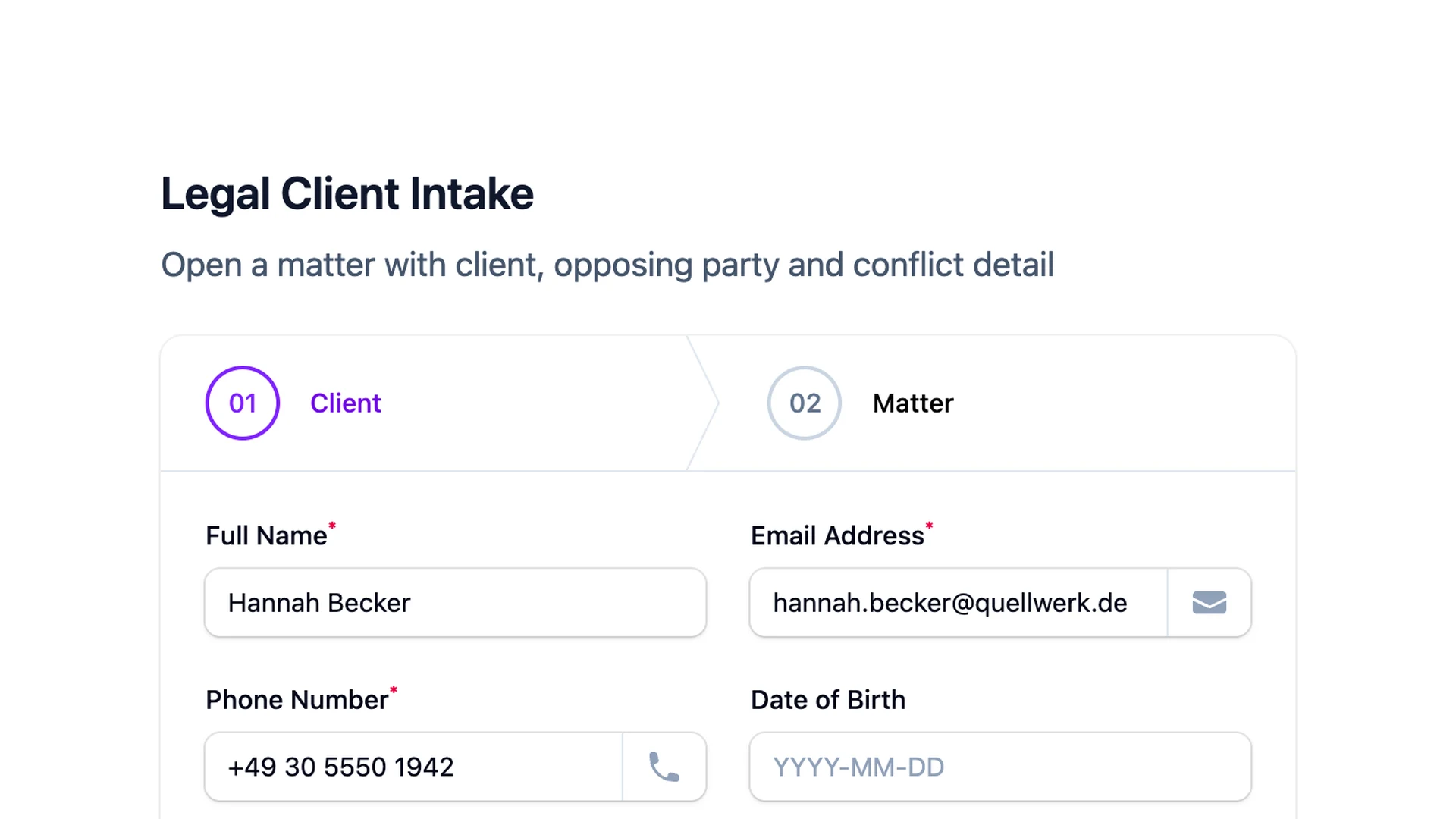
**Wizard** turns each section into its own step. The user sees one section at a time, with Next and Previous buttons to navigate between them. There's a progress bar at the top showing where they are.

The important thing: you don't build wizard forms differently from regular forms. You build a normal form with sections, then flip the display mode. The form structure is the same either way.

[\#](#setting-up-your-form-with-sections "Permalink")Setting up your form with sections
---------------------------------------------------------------------------------------

Before you can enable wizard mode, you need a form with multiple sections. Each section becomes one step in the wizard.

If you've already [built a form in Filament with FilaForms](https://filaforms.app/blog/building-a-contact-form-in-laravel-with-filament-step-by-step), this process will feel familiar. The difference is that instead of putting all fields in one section, you'll split them across several.

Let's say you're building an event registration form. You might structure it like this:

**Section 1: Personal information**

- Full name (text field)
- Email address (email field)
- Phone number (text field)

**Section 2: Event preferences**

- Which sessions are you attending? (checkbox group)
- Dietary requirements (select)
- T-shirt size (select)

**Section 3: Additional info**

- How did you hear about us? (select)
- Any accessibility needs? (textarea)
- Terms and conditions (checkbox)

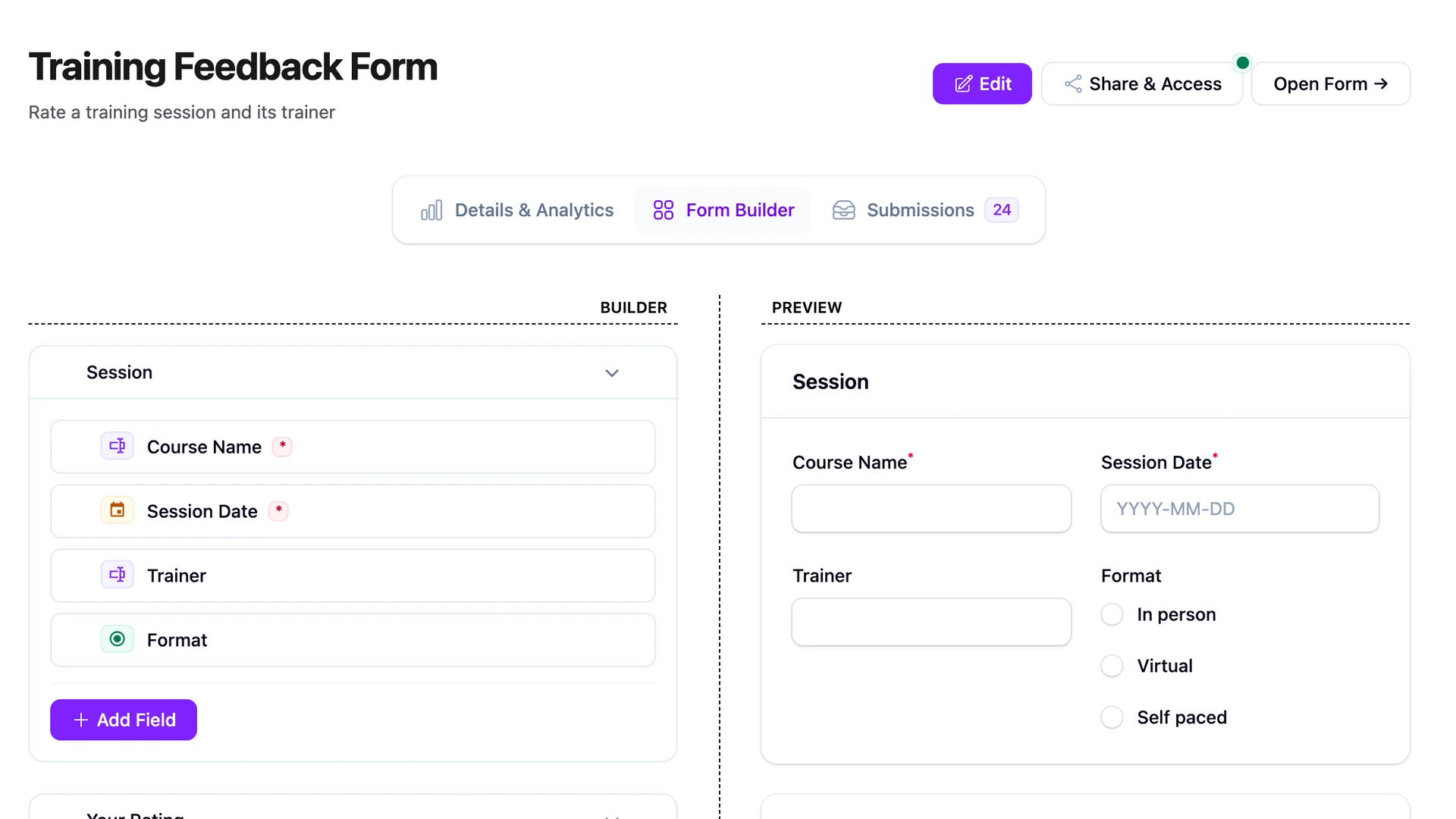
Three sections, each with a clear purpose. In the FilaForms admin panel, you create each section and drag your fields into it.

### [\#](#section-types "Permalink")Section types

FilaForms supports three section types, and each one renders differently when used as a wizard step:

- **Section** renders as a card with a heading. This is what you'll use most of the time.
- **Fieldset** renders as an HTML `` with a ``. Useful if you want that native form grouping look.
- **Headless** renders with no wrapper at all. The fields just appear directly. Good when you want full control over styling.

Pick whichever fits your design. For most wizard forms, the default "section" type works well.

[\#](#enabling-wizard-mode "Permalink")Enabling wizard mode
-----------------------------------------------------------

Here's where it gets easy. Once your sections are set up:

1. Open your form in the FilaForms admin panel
2. Go to the **Experience** tab
3. Change the display mode from **Simple** to **Wizard**

That's it. Your form now renders as a multi-step wizard. Each section becomes a step, shown one at a time, with navigation buttons at the bottom.

If you've already [set up a public-facing form](https://filaforms.app/blog/how-to-add-public-facing-forms-to-your-filament-app), the wizard mode works with public forms too. The same embed or route you're already using will automatically display the wizard version.

[\#](#configuring-wizard-options "Permalink")Configuring wizard options
-----------------------------------------------------------------------

The defaults are sensible, but you can tune a few things.

### [\#](#progress-bar "Permalink")Progress bar

`showProgressBar` is on by default. It renders a progress indicator at the top of the form showing all steps, with the current step highlighted. I'd leave this on. Users want to know how far along they are, and hiding it makes the form feel endless.

### [\#](#step-numbers "Permalink")Step numbers

`showStepNumbers` adds numbers to each step in the progress bar (Step 1, Step 2, etc.). Also on by default. Turn it off if your step labels are descriptive enough on their own and the numbers feel redundant.

### [\#](#step-navigation "Permalink")Step navigation

`allowStepNavigation` lets users click on previous steps in the progress bar to jump back. This is on by default, and I'd almost never turn it off. People want to go back and change answers. Blocking that just annoys them.

The only case where you might disable it: forms where later steps depend on earlier answers through conditional logic, and going back could create confusing states. Even then, think twice.

### [\#](#custom-button-labels "Permalink")Custom button labels

The default button labels are "Next", "Previous", and "Submit". You can change any of them.

Some ideas:

- "Continue" instead of "Next" if your form feels more like a flow
- "Go back" instead of "Previous" for a friendlier tone
- "Register" or "Send application" instead of "Submit" to match the form's purpose

Small thing, but it helps. "Submit" is generic. "Complete registration" tells the user exactly what happens when they click.

[\#](#per-step-validation "Permalink")Per-step validation
---------------------------------------------------------

This is one of the best parts of wizard mode in FilaForms. Each step validates its own fields before the user can advance.

If someone skips a required field or enters an invalid email on step 1, they can't click Next. The validation errors appear right there, on the current step, and they have to fix them before moving forward.

This is way better than validating everything at the end. Nobody wants to fill out three pages, hit Submit, and get bounced back to page 1 for a missing phone number. With per-step validation, errors show up while the user is still looking at the relevant fields.

You don't need to configure this. It just works. Whatever validation rules you've set on your fields (required, email format, min length, etc.) are enforced at each step boundary.

[\#](#embedding-the-wizard-in-your-laravel-views "Permalink")Embedding the wizard in your Laravel views
-------------------------------------------------------------------------------------------------------

Once your wizard form is built in the admin panel, you can embed it anywhere in your app using the Livewire component:

```
// In your controller
use FilaForms\Core\Models\Form;

public function register()
{
    $form = Form::where('slug', 'event-registration')
        ->where('is_public', true)
        ->where('active', true)
        ->firstOrFail();

    return view('events.register', compact('form'));
}

```

```
{{-- In your Blade template --}}
@extends('layouts.marketing')

@section('content')

        Register for the Event

@endsection

```

The wizard mode renders automatically — the same component handles both simple and wizard display modes based on how you configured the form in the admin panel.

[\#](#putting-it-together-event-registration-example "Permalink")Putting it together: event registration example
----------------------------------------------------------------------------------------------------------------

Let me walk through the full setup for that event registration form.

**Step 1: Create the form**

In your FilaForms admin panel, create a new form. Give it a name like "Event Registration."

**Step 2: Add sections and fields**

Create three sections:

*Personal Information* (section type: section)

- Full Name - text input, required
- Email - email input, required
- Phone - text input, optional

*Event Preferences* (section type: section)

- Sessions - checkbox group with your session options
- Dietary Requirements - select (None, Vegetarian, Vegan, Gluten-free, Other)
- T-Shirt Size - select (S, M, L, XL, XXL)

*Final Details* (section type: section)

- How did you hear about us? - select (Social media, Friend, Website, Other)
- Accessibility Needs - textarea, optional
- I agree to the terms - checkbox, required

**Step 3: Enable wizard mode**

Go to the Experience tab. Set display mode to Wizard.

**Step 4: Configure options**

- Keep `showProgressBar` on
- Keep `showStepNumbers` on
- Keep `allowStepNavigation` on
- Change the Submit button label to "Complete Registration"

**Step 5: Publish**

If this is a [public form on your Laravel app](https://filaforms.app/blog/self-hosted-form-builder-for-laravel-why-you-dont-need-typeform), make sure it's set to public and embed it or link to its route. The wizard mode renders automatically.

Now your users see a clean three-step form. Step 1 collects their info with validation. Step 2 asks about preferences. Step 3 wraps up with a clear "Complete Registration" button. The progress bar shows where they are the whole time.

[\#](#tips-from-building-wizard-forms "Permalink")Tips from building wizard forms
---------------------------------------------------------------------------------

A few things I've learned from working with multi-step forms:

**Keep steps balanced.** If step 1 has two fields and step 3 has twelve, rethink your grouping. Steps that feel dramatically different in length make the form feel uneven.

**Name your sections well.** Section names become the step labels in the progress bar. "Step 1" and "Step 2" are useless. "Your Details" and "Event Preferences" tell users what to expect before they even start filling in fields.

**Don't overdo the step count.** Three to five steps is about right. More than five and your form is probably trying to do too much. Cut fields or split into separate forms.

**Use conditional logic within steps.** FilaForms supports conditional logic, so fields can show or hide within a step based on other answers. Show an "Other dietary requirement" text field only when someone selects "Other" from the dropdown. Most users see fewer fields, but you still capture what you need.

**Test on mobile.** Wizard forms actually work better on mobile since each step shows fewer fields. Just check that the progress bar isn't getting clipped on narrow screens.

[\#](#frequently-asked-questions "Permalink")Frequently Asked Questions
-----------------------------------------------------------------------

### [\#](#how-do-i-create-multi-step-forms-in-filament "Permalink")How do I create multi-step forms in Filament?

Install FilaForms, create a form in the admin panel with multiple sections (each section becomes one step), then go to the Experience tab and switch the display mode from Simple to Wizard. No custom Livewire code or JavaScript required. The wizard renders automatically with a progress bar, per-step validation, and Next/Previous navigation.

### [\#](#does-filaforms-support-wizard-style-forms "Permalink")Does FilaForms support wizard-style forms?

Yes. FilaForms has a built-in Wizard display mode that turns each form section into a separate step. It includes a progress bar, step numbers, per-step validation, and configurable navigation. You can customize button labels ("Continue," "Complete Registration"), allow users to jump back to previous steps, and use conditional logic within individual steps.

### [\#](#can-i-validate-individual-steps-in-a-multi-step-form "Permalink")Can I validate individual steps in a multi-step form?

Yes. FilaForms validates each step's fields before allowing the user to advance. If a required field is empty or a value fails validation (wrong format, below minimum length), the error appears on the current step and the user can't proceed. This happens automatically based on the validation rules you set per field — no extra configuration needed.

[\#](#wrapping-up "Permalink")Wrapping up
-----------------------------------------

Multi-step forms aren't complicated to build. The hard part is deciding how to split your fields into steps that make sense. Once that's sorted, FilaForms handles the wizard rendering, per-step validation, and progress tracking for you.

If you want to try this yourself, [grab FilaForms](https://filaforms.app) and have a wizard form running in about ten minutes.

 Related posts
-------------

 [  Tutorials   Apr 2, 2026

 Form Submission Tracking and Analytics in Laravel — Without Third-Party Tools
-------------------------------------------------------------------------------

Track form views, starts, submissions, and completion rates directly in Laravel without third-party analytics. See how FilaForms handles it with built-in session fingerprinting.

 ](https://filaforms.app/blog/form-submission-tracking-and-analytics-in-laravel-without-third-party-tools) [  Tutorials   Mar 26, 2026

 Building a Contact Form in Laravel with Filament (Step-by-Step)
-----------------------------------------------------------------

Build a working contact form in Laravel using FilaForms and Filament. Covers installation, form creation, email notifications, spam protection, and embedding.

 ](https://filaforms.app/blog/building-a-contact-form-in-laravel-with-filament-step-by-step) [  Tutorials   Mar 9, 2026

 How to Add Public-Facing Forms to Your Filament App
-----------------------------------------------------

Learn how to create public-facing forms in Filament using FilaForms. Install, configure, and publish frontend forms with ULID URLs, spam protection, and Livewire embedding.

 ](https://filaforms.app/blog/how-to-add-public-facing-forms-to-your-filament-app)

    ![FilaForms Logo](/logo.svg) FilaForms

 Laravel form infrastructure for Filament. Stop rebuilding forms on every project.

 ### Product

 [ Documentation ](https://docs.filaforms.app) [ Blog ](https://filaforms.app/blog) [ Features ](https://filaforms.app#features) [ Contact ](mailto:hello@filaforms.app)

 ### Legal

 [ Terms of Service ](https://filaforms.app/terms-of-service) [ Privacy Policy ](https://filaforms.app/privacy-policy)

  © 2025-2026 FilaForms. All rights reserved.

 [    ](mailto:hello@filaforms.app) [    ](https://x.com/MinasyanManuk)